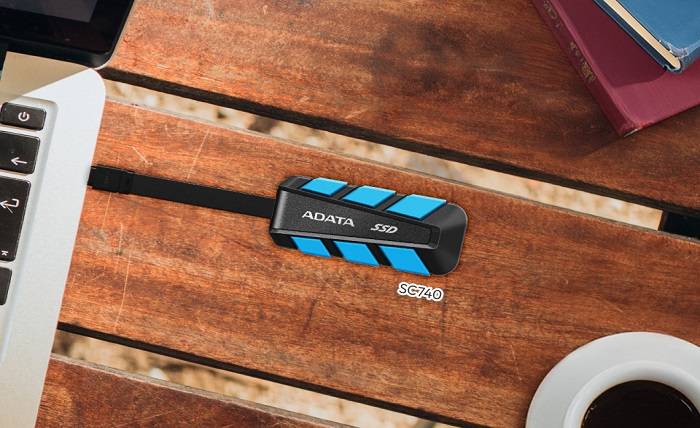
External ssd has always been essential for modern laptops, offering speed, portability, and reliability. As laptops get slimmer and internal storage becomes more limited, external SSDs provide an easy way to expand capacity without sacrificing performance.
Whether you need faster file transfers, smoother gaming, reliable backups, or an easier way to multitask, an external SSD is a useful tool for professionals, students, and gamers. In this article, we’ll explore why an external SSD is a must-have for modern laptops.
What Is an External SSD?
An external SSD (Solid-State Drive) is a storage device that connects to your computer. It uses the same fast, reliable flash memory as internal SSDs, with no moving parts, and is housed in a protective casing. Many portable SSDs are small, durable, and designed for easy on-the-go use.
How It Works & Key Features
- Connection: Uses USB 3.2 Gen2 or Thunderbolt to connect. The port acts as a “bridge” between your device and the SSD inside.
- Enclosure: The SSD’s casing provides protection, often making it shockproof or drop-resistant.
- Speed Limits: An SSD’s performance can be limited by the type of connection, such as USB or Thunderbolt.
- Power: Most external SSDs get their power through the cable, so you don’t need a separate power source.
External SSDs are fast, portable, and reliable, offering speed and durability.
Key Benefits of Using an External SSD
- Speed: External SSDs offer fast read and write speeds, allowing quick file transfers, smooth editing, and efficient handling of large projects.
2. Reliability: SSDs are durable and less prone to damage because they have no moving parts, making them more dependable than traditional hard drives.
3. Energy Efficiency: SSDs use less power, which helps extend battery life on laptops and other portable devices.
4. Portability: Slim, lightweight, and often shockproof, external SSDs are easy to carry, making them perfect for backups, travel, or working on the go.
5. Plug-and-Play: External SSDs can be used immediately by connecting them to a device via USB-C, USB 3.2 Gen2, or Thunderbolt, with no installation required. They are simple, convenient, and compatible with most modern devices.
External SSDs are fast, durable, energy-efficient, portable, and easy to use, making them one of the best options for safe and convenient storage.
Common Use Cases for an External SSD
1.Backing Up Important Files
External SSDs offer fast, reliable storage for documents, photos, and sensitive data. Their durability makes them more resilient than traditional HDDs, perfect for keeping backups safe on the go.
2. Storing Large Media Files
Ideal for photos, 4K videos, music libraries, and other large files, external SSDs provide high read/write speeds for smooth playback and quick editing, making them a great choice for both professionals and enthusiasts.
3. Running Applications or Games
External SSDs can store and run apps or games, delivering faster load times than HDDs. They’re useful for devices with limited internal storage or for portable setups.
4. Boosting Productivity for Creators
External SSDs make work faster for designers, video editors, and coders. They store projects or act as fast working drives, speeding up access to large files and demanding tasks.
External SSDs deliver fast, reliable, and convenient storage for everything from backups to creative work.
How to Choose the Right External SSD
Choosing the right external SSD means considering factors like speed, capacity, durability, and security to make sure it meets your needs. Here’s a simple guide:
1. Performance (Speed and Interface)
When choosing an external SSD, pay attention to how it connects and how fast it can transfer data:
Interface Type: Look for USB 3.2 Gen 2 or Thunderbolt 3/4 for faster data transfers.
Speed Requirements: For video editing, gaming, or large file transfers, choose drives with high read/write speeds.
Compatibility: Make sure the SSD works with your device’s ports and supports the speeds you need.
A good interface and fast speeds ensure smooth, efficient performance.
2. Capacity
Select an external SSD with enough storage for your current files and some extra space for future use, so you don’t run out of room.
3. Durability and Build Quality
Choose an external SSD with a sturdy, rugged, or IP-rated casing if you’ll be using it on the go. Shock-resistant designs help protect the drive from drops and bumps, making it ideal for travel and mobile use.
4. Security Features
External SSDs may include hardware or software encryption and password protection to keep your data secure from unauthorized access or loss.
5. Price and Warranty
Select an SSD that balances your budget with the features and performance you require. Ensure it includes a warranty to ensure reliability and support.
By keeping these factors in mind, you can pick an external SSD that fits your needs, performs well, and lasts a long time.
Tips for Maximizing External SSD Performance
- Keep Enough Free Space
Leave 10–25% of your SSD empty. This allows the drive’s wear-leveling system to operate efficiently, maintaining performance and extending its lifespan.
2. Enable Write Caching
Write caching temporarily stores data in system RAM before writing it to the SSD, boosting write speeds. Always safely eject the drive to prevent data loss.
3. Optimize Performance Settings
On Windows, go to Device Manager > Disk Drives > [Your SSD] > Policies, and enable Better performance and Write caching. This improves transfer speeds.
4. Use the Right Port and Cable
Connect your SSD to USB 3.2 Gen 2, or Thunderbolt 3/4 ports with high-quality cables to achieve maximum speeds. Older ports like USB 3.0 can slow down performance.
5. Update Firmware and Drivers
Keep your SSD firmware and system USB/storage drivers up to date to fix bugs and enhance performance.
6. Manage Heat
Prevent overheating by using drives with cooling features or placing them in well-ventilated areas. Excess heat can slow the SSD (thermal throttling) and reduce its lifespan.
7. Backup Regularly
Even reliable SSDs can fail unexpectedly. Regular backups protect your important files from data loss.
Following these tips ensures your external SSD remains fast, reliable, and lasts as long as possible.
External SSD vs. External HDD: Which Is Better?
When choosing between an external SSD and HDD, consider speed, storage, durability, and cost.
- Performance
External SSD: Extremely fast, with read and write speeds ranging from around 500 MB/s up to 7,000 MB/s. Perfect for demanding tasks like video editing, gaming, or even running applications directly from the drive.
External HDD: Slower, around 130–160 MB/s. Suitable for basic storage, backups, and media files, but not recommended for performance-intensive tasks.
2. Cost and Capacity
External SSD: Higher cost per terabyte, but prices are dropping. Best for users who prioritize speed and performance.
External HDD: Cheaper per terabyte with larger capacities. Perfect for storing large amounts of data without needing fast access.
3. Durability and Reliability
External SSD: An external SSD is a portable, fast, and reliable storage device, perfect for backups and media on the go.
External HDD: A storage device with moving parts, making it more fragile than an SSD, but still reliable when handled properly.
4. Power Consumption and Portability
External SSD: Uses less power, extending laptop battery life. Compact and lightweight, easy to carry.
External HDD: A bulkier and power-hungry storage device with moving parts, making it less portable and reducing battery life.
Consider speed, capacity, portability, and cost to choose the storage solution that best suits your needs.